
Claudia Messages provides an Intercom-like interface for store administrators to stay connected with all customer handoff sessions. When customers request to speak with a human agent, conversations are seamlessly transferred to your team through the Messages interface.
Understanding the Messages Interface
The Messages interface features a three-panel layout similar to Intercom:
- Left Panel: Conversation List – View all active and past conversations
- Center Panel: Message Thread – View and send messages in the selected conversation
- Right Panel: Customer Info – View customer details and conversation context
Accessing Messages
Navigate to Messages
- Log in to your Claudery backend
- In the left sidebar, locate Claudia
- Click on Messages from the submenu
- The Messages interface will load with the three-panel layout
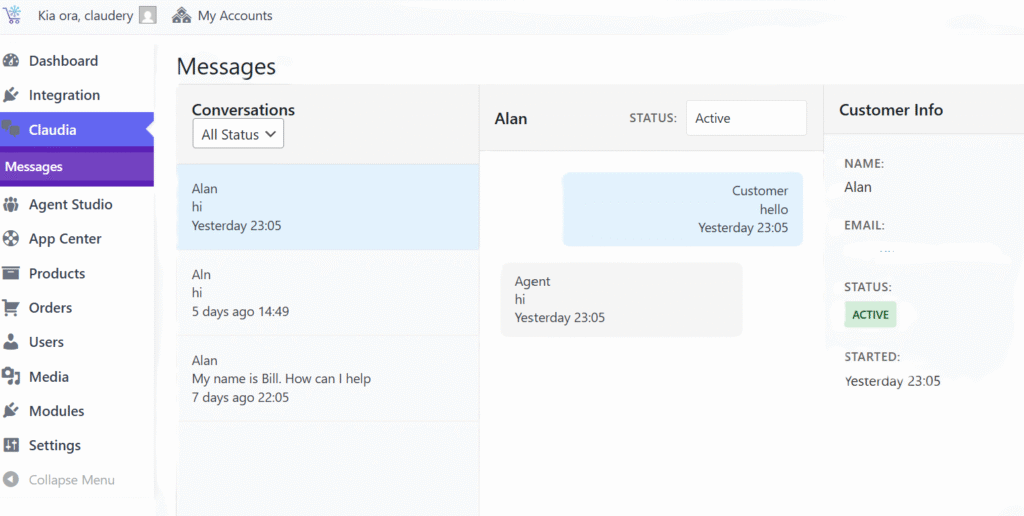
Conversation Status Overview
The conversation list shows all customer conversations with the following statuses:
Status Types
- Active – Conversation is currently active and waiting for response
- Waiting – Customer is waiting for your response
- Resolved – Conversation has been resolved
- Archived – Conversation has been archived
Filtering Conversations
- Use the status filter dropdown in the conversation list header
- Select a status (Active, Waiting, Resolved, Archived) or “All Status” to view all conversations
- The conversation list will update to show only conversations matching the selected status
Viewing Conversations
Select a Conversation
- Click on any conversation in the left panel (Conversation List)
- The center panel (Message Thread) will load all messages in chronological order
- The right panel (Customer Info) will display customer details and conversation context
Message Thread Display
- Messages are displayed in chronological order (oldest first)
- Each message shows the sender name, timestamp, and message content
- AI messages are clearly labeled and include the conversation context before handoff
- Customer messages appear with customer name or email
- Agent messages (your responses) appear with your admin username
Sending Messages
Compose a Message
- Select a conversation from the conversation list
- The message composer will appear at the bottom of the center panel
- Type your message in the text area
- Optionally attach a file using the attachment button (📎)
- Click Send to send the message
Real-Time Messaging
- Messages are sent and received instantly
- When you send a message, the customer receives it immediately in their chat widget
- When the customer replies, you’ll see their message appear immediately in the message thread
- No page refresh is needed – the interface updates automatically
Customer Information
When you select a conversation, the right panel displays customer information and conversation context:
Customer Details
- Customer Name – Name provided during handoff (if available)
- Customer Email – Email address (if provided)
- Customer Session ID – Platform session identifier
- Platform – E-commerce platform (WooCommerce, Shopify, BigCommerce, Odoo)
Conversation Context
- Handoff Reason – Why the conversation was transferred to human agent
- AI Conversation History – Context from the AI conversation before handoff
- Products Viewed – Products the customer viewed during the AI conversation
- Cart Contents – Items in the customer’s cart at the time of handoff
Managing Conversations
Conversation Status Updates
- Conversations are automatically marked as “Active” when created
- You can manually update conversation status as needed
- Mark conversations as “Resolved” when the issue is resolved
- Archive old conversations to keep the list organized
Finding Specific Conversations
- Use the status filter to narrow down conversations by status
- Conversations are sorted by most recent activity (newest first)
- Customer name, email, or session ID can help identify specific conversations
- Platform badge (WooCommerce, Shopify, etc.) helps identify the source platform
Troubleshooting
Messages Not Appearing
- Verify the Messages interface is configured correctly in Chat Settings
- Check browser console for errors
- Ensure your internet connection is working
- Verify conversation was created after handoff occurred
Real-Time Updates Not Working
- Check your internet connection
- Verify Messages interface configuration in Chat Settings
- Refresh the page if messages aren’t updating
- Check browser console for connection errors
Conversation Not Created
- Verify handoff actually occurred (check customer chat widget)
- Check if the Messages interface is enabled
- Ensure the base Claudery AI plugin is active
- Contact support if conversations aren’t being created
Best Practices
- Respond Promptly – Active conversations should be responded to quickly
- Review Context – Always check the Customer Info panel for conversation context
- Use Status Filters – Filter by “Waiting” or “Active” to prioritize conversations
- Resolve When Done – Mark conversations as resolved when issues are resolved
- Check Platform – Platform badge helps identify which store the customer is from