

What if you could run your WordPress or WooCommerce store from your Mac—without opening the browser or logging into wp-admin? Ask for order insights, draft a blog post, check catalog health, or create a memo in plain English from Claude Desktop or Cursor. That’s the idea behind the MERV background agent: one connection from your desktop AI to your live site, no matter where it’s hosted.
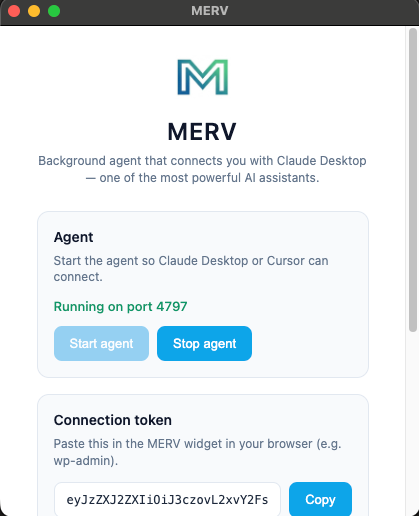
How it works: from desktop to your site
The flow is simple and stays the same whether your site runs on shared hosting, a VPS, or a fully bespoke environment.
- Get a connection token from the Mac desktop app. In your AI workspace (Claude Desktop app or Cursor), you obtain a connection token that links your session to your store.
- Connect to your site’s widget. Your WordPress site has a small widget or integration that accepts this token. Once connected, your desktop AI is securely linked to that store.
- Control your store from Claude or Cursor. You stay in your preferred AI environment. You ask for what you want in natural language; the background agent talks to your site and brings back results or takes action.
You’re not copying data into the chat or pasting from wp-admin. The agent runs in the background against your live site, so you’re always working with real orders, real products, and real content.
What you can do (without touching wp-admin)
The agent gives you a single, conversational interface to many everyday tasks. You can:
- Understand orders and sales – Ask for order data or trends over a date range and get a clear summary instead of clicking through reports.
- Check catalog health – Have the agent look at your products and highlight gaps, duplicates, or opportunities so you can fix them when you’re ready.
- Create memos and store summaries – Turn a question like “summarize my store” or “memo last month’s performance” into a short, usable memo without leaving your desktop.
- Manage your blog – List posts, open a draft, or create a new post (including a featured image) from a prompt. Great for content ideas you want to capture quickly.
- Work with product imagery – Get suggestions for product scenes or swatches and generate images that you can use on the site, all from a conversation.
- See your credits and usage – Check your balance or usage when you need to plan ahead.
None of this requires you to name APIs or protocols. You describe the outcome; the agent figures out the right steps and talks to your site for you.
Why it matters for WordPress and WooCommerce on any hosting
Lots of stores run on WordPress and WooCommerce on bespoke hosting: custom servers, in-house infrastructure, or a host that doesn’t offer a fancy “AI dashboard.” The MERV background agent doesn’t care where your site lives. As long as your site can expose the connection widget and accept the token, you get the same desktop-to-store experience.
That means:
- You’re not locked into a specific host or control panel to use AI for your store.
- You can work from the tools you already use (Claude Desktop, Cursor) instead of learning a new admin UI.
- Your data stays on your server; the agent sends requests and receives answers, so you keep control and compliance where it matters.
- You can adopt this gradually—start with read-only tasks like order and catalog analysis, then add content and image workflows when you’re ready.
For busy merchants, the value is simple: fewer context switches, less time in the browser, and a single place (your AI desktop) to ask questions and get things done for your WordPress or WooCommerce store, no matter how it’s hosted.
Get a connection token from your Mac desktop app, connect to your site’s widget, and run your store from Claude or Cursor—with the MERV background agent doing the work in the background.
MERV + Claude Cowork
MERV is also compatible with Claude Cowork, so you can run your store from the same place you’re already working with Claude. Whether you’re in a long-running project or switching between tasks, you can ask for order summaries, catalog checks, or a new blog post without leaving the Co-worker session. One connection token links Co-worker to your site’s widget, and your store stays available in the background whenever you need it—no extra app or browser tab required.
MERV + Cursor
How to get Cursor to auto-write and publish a blog post. Connect Cursor to your WordPress site (e.g. claudery.ai) so the AI can talk to your blog. Then ask in natural language for a post on a topic—for example, “Write a blog post on how to develop a Claude Cowork skill for support ticket analysis and publish it to claudery.ai.” Cursor will research the topic, draft the post (including structure and tone), optionally add a featured image, and publish it as a draft or live post via the connection. The support ticket analysis skill post on Claudery was written and published this way: one prompt in Cursor, no copy-paste into wp-admin. You can refine the draft in WordPress after publishing if you want.
As you watched from the YouTube video, here is the blog that was written by Cursor.
https://claudery.ai/how-to-develop-a-claude-cowork-skill-for-support-ticket-analysis/

