
This guide will walk you through integrating Claudery with your Shopify store. You’ll need to create a custom app and generate Admin API credentials to connect your store to Claudery.
Prerequisites
- Active Shopify store with admin access
- Claudery SaaS account and access to the Claudery dashboard
- Understanding of Shopify app development (custom apps)
Step 1: Create a Custom App in Shopify
1.1 Access Shopify Admin
- Log in to your Shopify admin panel
- Navigate to Settings (located at the bottom left of the admin panel)
- Click on Apps and sales channels
- Scroll down and click Develop apps (or Develop apps for your store)
Note: If you don’t see the “Develop apps” option, you may need to enable developer mode or contact your store owner for access.
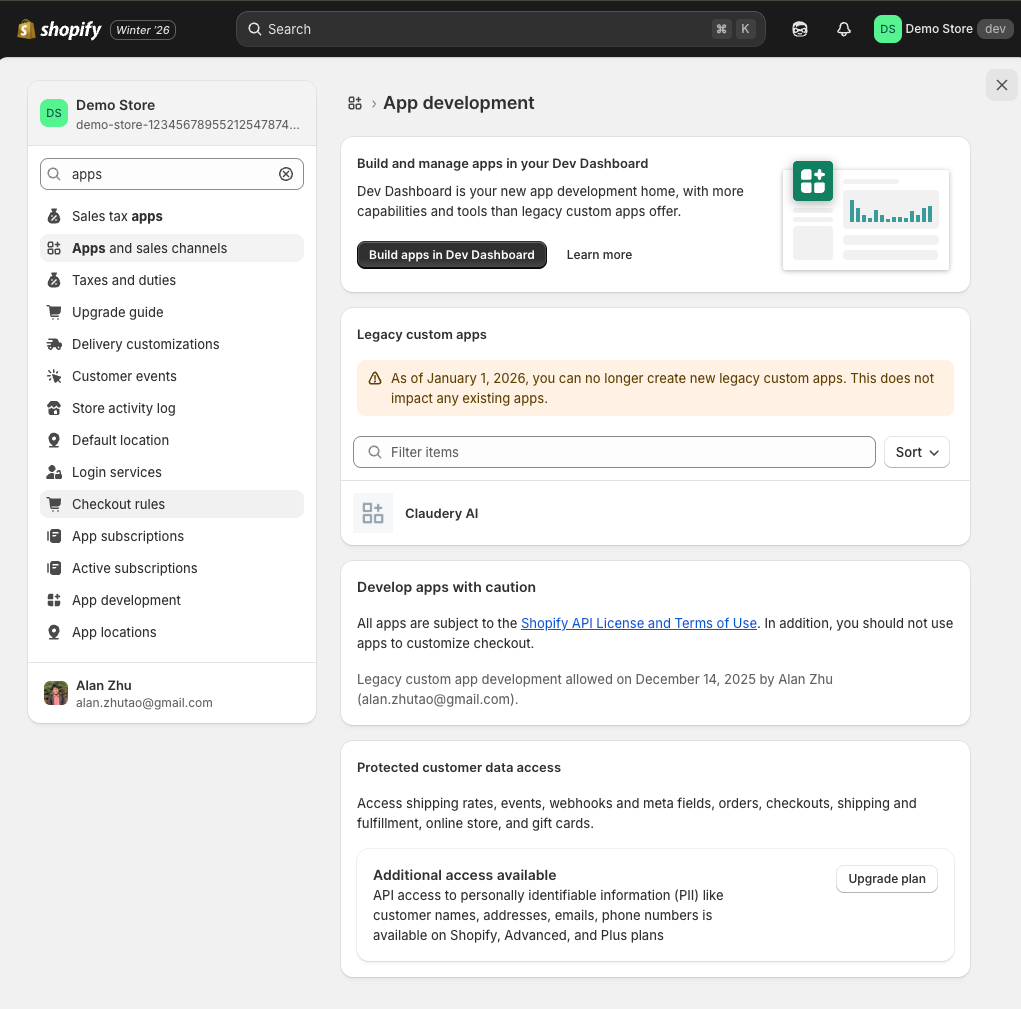
1.2 Create New App
- Click the Create an app button
- Enter an app name (e.g., “Claudery AI Integration”)
- Enter your email address as the app developer (if prompted)
- Click Create app
1.3 Configure API Scopes
- After creating the app, you’ll see the app details page
- Click on Configure Admin API scopes
- Enable the following scopes (minimum required):
- read_products – Read product information
- write_products – Write product information (if needed)
- read_customers – Read customer information
- read_orders – Read order information
- Click Save to save your scope selections
1.4 Install the App
- Click the Install app button at the top of the app page
- Review the permissions being requested
- Click Install to confirm installation
Step 2: Generate Admin API Access Token
2.1 Access API Credentials
- After installing the app, you’ll see the API credentials tab
- Click on API credentials in the left sidebar
- Scroll down to the Admin API access token section
2.2 Generate Access Token
- Click the Reveal token once button (or Generate token)
- The access token will be displayed – this is your Admin API access token
- Copy the token immediately – it will only be shown once
Important: Copy the access token immediately and store it securely. The token will only be displayed once. If you lose it, you’ll need to generate a new token.
2.3 Get Your Shop Domain
- Your shop domain is your store’s myshopify.com URL
- It’s typically in the format:
yourstore.myshopify.com - You can find it in your Shopify admin URL or in the app settings
- Note this down – you’ll need it for configuration
Step 3: Configure Claudery Platform Settings
3.1 Access Claudery Dashboard
- Log in to your Claudery SaaS dashboard
- Navigate to your merchant site settings
- Go to the Quick Start section or Platform Settings
3.2 Select Shopify Platform
- Select Shopify as your e-commerce platform
- This will display the Shopify-specific credential fields
3.3 Enter Shop Domain
- Enter your Shopify shop domain in the Shop Domain field
- Use the format:
yourstore.myshopify.com(without https://) - Do not include the protocol (https://) or trailing slashes
3.4 Enter Access Token
- Paste your Admin API Access Token into the Access Token field
- Ensure there are no extra spaces before or after the token
3.5 Test Connection
- Click the Test Connection or Save & Test button
- Wait for the connection test to complete
- If successful, you’ll see a confirmation message
- If there’s an error, verify your credentials are correct
Step 4: Sync Products
4.1 Initial Product Sync
- After successful connection, navigate to the Product Sync section
- Click Sync Products or Initial Sync
- Wait for the sync process to complete
- Monitor the progress – larger catalogs may take several minutes
4.2 Verify Sync
- Check the sync status in the dashboard
- Review the product count to ensure all products were synced
- If any products failed to sync, check the error logs for details
Step 5: Configure Widget Settings
5.1 Get Widget Embed Code
- Navigate to Widget Settings in your Claudery dashboard
- Copy the provided JavaScript embed code
5.2 Add Widget to Shopify Theme
- In Shopify admin, go to Online Store → Themes
- Click Customize on your active theme
- Navigate to Theme settings → Additional scripts
- Paste the Claudery widget code in the Footer or Head section
- Click Save
Troubleshooting
Connection Errors
- Verify your shop domain is correct (format: yourstore.myshopify.com)
- Ensure your access token is copied correctly (no extra spaces)
- Check that the app has the required API scopes enabled
- Verify the app is installed on your store
- Make sure you’re using Admin API credentials, not Storefront API
Sync Issues
- Check that products exist in your Shopify store
- Review error logs in the Claudery dashboard for specific error messages
- Verify your API scopes include read_products permission
- Check Shopify API rate limits if sync is intermittent
App Installation Issues
- If “Develop apps” option is not visible, contact your store owner
- Ensure you have sufficient permissions in your Shopify account
- Try using a different browser or clearing browser cache
Security Notes
- Keep your access token secure – treat it like a password
- If the token is compromised, revoke it in Shopify and generate a new one
- Use the minimum required API scopes for security
- Regularly review installed apps and their permissions in Shopify
- Consider using environment variables to store credentials securely
API Version Information
Claudery uses Shopify Admin API version 2024-10. This ensures compatibility with the latest Shopify features and maintains stability with API changes.
Next Steps: Once integration is complete, you can customize your AI assistant settings, configure product search preferences, and start using Claudery’s AI-powered shopping features on your Shopify store.