
This guide will walk you through integrating Claudery with your WooCommerce store. You’ll need to generate WooCommerce REST API credentials to connect your store to Claudery.
Prerequisites
- WordPress site with WooCommerce plugin installed and activated
- Administrator access to your WordPress dashboard
- Claudery SaaS account and access to the Claudery dashboard
Step 1: Generate WooCommerce REST API Credentials
1.1 Navigate to WooCommerce API Settings
- Log in to your WordPress admin dashboard
- Go to WooCommerce → Settings
- Click on the Advanced tab
- Click on REST API in the left sidebar
1.2 Create New API Key
- Click the Add key button
- Fill in the key details:
- Description: Enter a descriptive name (e.g., “Claudery AI Integration”)
- User: Select your WordPress admin user account
- Permissions: Select Read/Write (Claudery needs full access to products, orders, and customers)
- Click Generate API key
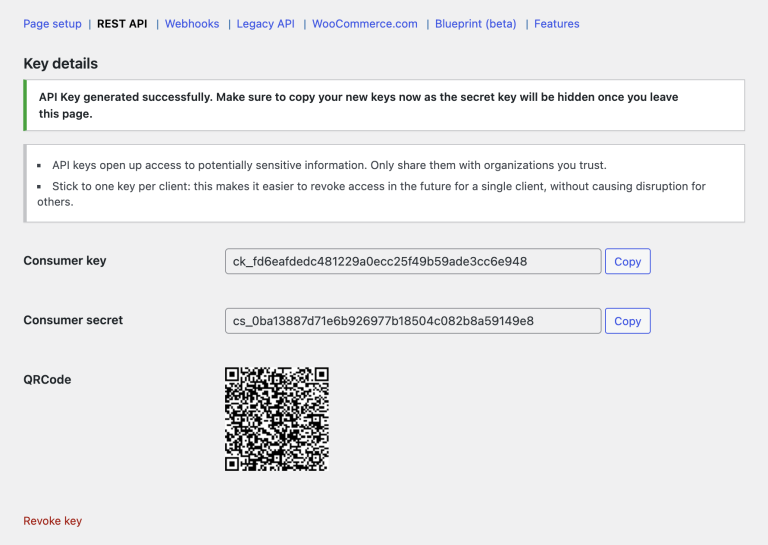
Important: Copy both the Consumer Key and Consumer Secret immediately. The Consumer Secret will only be displayed once and cannot be retrieved later. If you lose it, you’ll need to generate a new API key pair.
1.3 Save Your Credentials
- Copy the Consumer Key (starts with
ck_) - Copy the Consumer Secret (starts with
cs_) - Store these credentials securely – you’ll need them in the next step
Step 2: Configure Claudery Platform Settings
2.1 Access Claudery Dashboard
- Log in to your Claudery SaaS dashboard
- Navigate to your merchant site settings
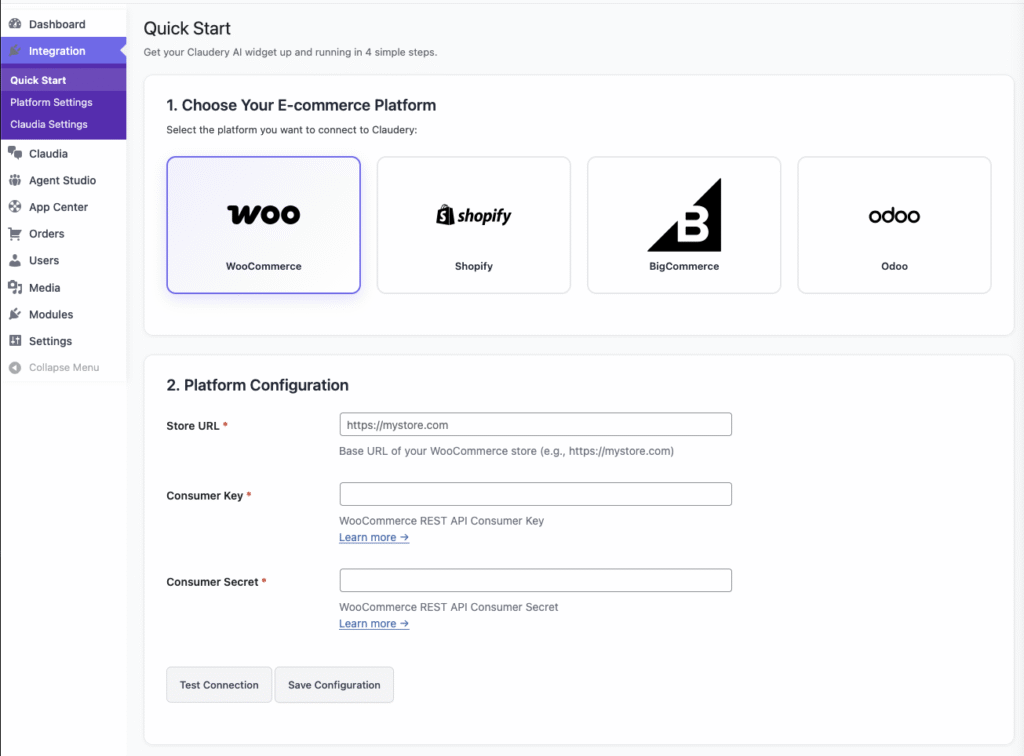
- Go to the Quick Start section
2.2 Select WooCommerce Platform
- Select WooCommerce as your e-commerce platform
- This will display the WooCommerce-specific credential fields
2.3 Enter Store URL
- Enter your WooCommerce store URL in the Store URL field
- Use the full URL with protocol (e.g.,
https://yourstore.com) - Do not include trailing slashes
2.4 Enter API Credentials
- Paste your Consumer Key into the Consumer Key field
- Paste your Consumer Secret into the Consumer Secret field
2.5 Test Connection
- Click the Test Connection or Save & Test button
- Wait for the connection test to complete
- If successful, you’ll see a confirmation message
- If there’s an error, verify your credentials and store URL are correct
Step 3: Sync Products
3.1 Initial Product Sync
- After successful connection, navigate to the Product Sync section
- Click Sync Products or Initial Sync
- Wait for the sync process to complete
- Monitor the progress – larger catalogs may take several minutes
3.2 Verify Sync
- Check the sync status in the dashboard
- Review the product count to ensure all products were synced
- If any products failed to sync, check the error logs for details
Step 4: Configure Widget Settings (Optional)
4.1 Get Widget Embed Code
- Navigate to Widget Settings in your Claudery dashboard
- Copy the provided JavaScript embed code
4.2 Add Widget to Your Store
- Since you’re using WooCommerce, the widget can be embedded via your theme or plugin
- For WordPress themes: Add the code to your theme’s footer.php or use a plugin like “Insert Headers and Footers”
- Alternatively, use the Claudery WordPress plugin if available
Troubleshooting
Connection Errors
- Verify your store URL is correct and accessible
- Ensure your Consumer Key and Secret are copied correctly (no extra spaces)
- Check that the API key has Read/Write permissions
- Verify WordPress REST API is enabled (it should be by default)
Sync Issues
- Check that WooCommerce is active and products exist
- Review error logs in the Claudery dashboard for specific error messages
- Ensure your WordPress site is accessible from the internet (not blocked by firewall)
- Verify your hosting provider allows REST API requests
Security Notes
- Keep your API credentials secure – treat them like passwords
- If credentials are compromised, revoke the API key in WooCommerce and generate new ones
- Use HTTPS for your store URL to ensure secure communication
- Regularly review and audit your API keys in WooCommerce settings
Next Steps: Once integration is complete, you can customize your AI assistant settings, configure product search preferences, and start using Claudery’s AI-powered shopping features.